










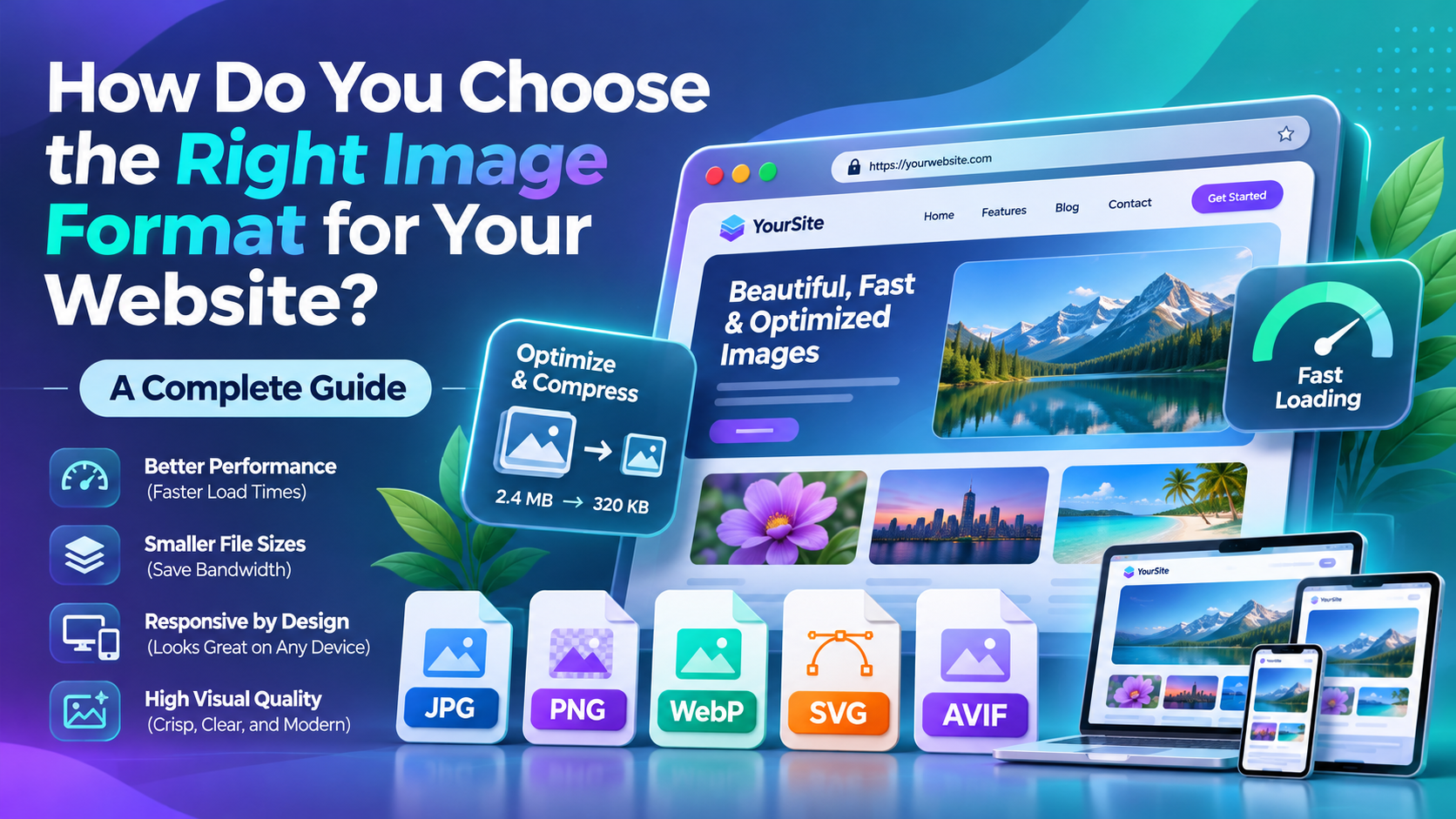
Choosing the right image format for your website can make a real difference in how fast your pages load and how good your images look. Whether you manage a blog, an online store, or a business website, using the wrong format can lead to large files, blurry graphics, and a poor user experience. With options like JPEG, PNG, WebP, AVIF, and SVG, finding the best choice can feel confusing. This guide explains how each format works, when to use it, and how tools such as an SVG converter can help you prepare better images for your website.
Why Does Choosing the Right Image Format Matter?
Every image on your website affects how visitors experience your content. High-quality visuals help explain ideas, highlight products, and make pages more appealing. However, large image files can slow down loading times, especially for visitors using mobile devices or slower internet connections.
The image format you choose determines how the file stores visual information. Some formats reduce file size by removing details that people may not notice. Others preserve every pixel or describe graphics using mathematical shapes. These differences affect image clarity, file size, browser compatibility, and performance.
Image optimization also supports search engine optimization (SEO). Google considers page experience and loading performance important aspects of a website’s overall quality. Although choosing a particular format does not directly guarantee better rankings, smaller and properly sized images can improve loading performance and usability.
According to Google’s web performance guidance, choosing suitable image formats and compressing images are useful steps toward building faster websites.
Key Takeaway: The right image format balances visual quality, file size, browser support, and website performance.
What Are the Most Common Website Image Formats?
Understanding the strengths and limits of each image format makes choosing the right one easier. Different formats work better for different kinds of visual content.
JPEG: Best for Photographs and Detailed Images
JPEG, also called JPG, is one of the most widely used image formats. It works well for photographs, blog illustrations, and images that contain many colors.
JPEG uses lossy compression, which means it removes some image information to make files smaller. With suitable compression settings, many photos still look clear while taking up less storage space.
However, JPEG does not support transparency. It also performs poorly when repeatedly saved with heavy compression, which can introduce visible artifacts.
For example, a travel blog featuring landscape photographs can use JPEG images to maintain acceptable quality without creating unnecessarily large files.
PNG: Best for Graphics That Need Transparency
PNG stands for Portable Network Graphics. Unlike JPEG, it uses lossless compression, which preserves the original pixel data when saving an image.
PNG is useful for screenshots, diagrams, interface graphics, and images that need transparent backgrounds. It also keeps sharp edges and small text clear.
The main drawback is file size. Complex PNG images, especially photographs, can be much larger than comparable JPEG, WebP, or AVIF files.
For instance, a software tutorial featuring screenshots with small text may benefit from PNG because preserving fine details is important.
WebP: Best for Versatile Website Images
WebP is a modern image format designed to deliver good visual quality with efficient compression. It supports both lossy and lossless compression, transparency, and animation.
WebP works well for photographs, product images, banners, and many other website graphics. It often provides smaller files than JPEG or PNG at comparable visual quality, although actual savings depend on the image and compression settings.
Modern browsers widely support WebP, making it a practical option for many websites.
AVIF: Best for Efficient Image Compression
AVIF is another modern format that offers strong compression efficiency. It can deliver high-quality images at relatively small file sizes and supports features such as transparency and high dynamic range.
AVIF can be especially useful for image-heavy websites where every kilobyte matters. However, encoding can take more time, and older software or browsers may not support it.
Website owners should test AVIF images against WebP and JPEG instead of assuming one format always produces the best result.
SVG: Best for Logos, Icons, and Vector Graphics
SVG stands for Scalable Vector Graphics. Unlike JPEG and PNG, which store images as pixels, SVG describes graphics using shapes, lines, and mathematical instructions.
This allows SVG images to scale without losing sharpness. They are particularly useful for logos, icons, simple illustrations, and diagrams.
An SVG converter can help turn suitable vector artwork into SVG or export SVG graphics into other formats. However, converting an ordinary photograph or pixel-based logo into SVG does not automatically create a clean, scalable vector image.
The MDN Web Docs guide to image file types provides further technical information about these formats and their browser support.
Key Takeaway: Choose JPEG for conventional photographs, PNG for lossless graphics, WebP or AVIF for efficient compression, and SVG for scalable vector artwork.
How Do You Match the Image Format to Your Website Content?
The best image format depends on what the image shows and how visitors will use it. A single format rarely works equally well for every image on a website.
For product photographs, JPEG, WebP, and AVIF are strong options. They can preserve realistic colors and details while reducing file size. An online clothing store, for example, can compare WebP and AVIF versions of product photographs to find a good balance between quality and speed.
For logos and icons, SVG often makes more sense. A logo may appear in a small navigation bar, a large website banner, and a high-resolution mobile screen. SVG can maintain crisp edges across all these sizes without requiring separate pixel-based versions.
For screenshots and text-heavy graphics, PNG or lossless WebP may be a better choice. These formats help preserve fine lines, readable text, and interface details. For animations, consider animated WebP or AVIF, depending on browser support and content needs.
Here is a simple reference table:
| Image Type | Recommended Formats | Main Benefit |
| Blog photographs | WebP, AVIF, JPEG | Efficient compression |
| Website logos | SVG | Sharp at any size |
| Screenshots | PNG, lossless WebP | Clear text and details |
| Product photos | WebP, AVIF, JPEG | Quality and performance |
| Icons | SVG | Easy scaling |
| Transparent graphics | PNG, WebP, SVG | Transparency support |
| Simple animated graphics | WebP, AVIF, GIF | Motion support |
Remember that SVG is suitable for vector-based transparent artwork, while PNG and WebP work with pixel-based transparent images.
Key Takeaway: Match your image format to the content instead of using the same format for every image.
How Can You Convert Images Without Losing Quality?
Image conversion is useful when a file is too large, has the wrong format, or does not work well in its intended location. However, converting images requires more than changing the file extension.
First, identify whether your image is raster or vector. Raster images consist of pixels and include JPEG, PNG, WebP, and AVIF. Vector images use mathematical paths and include SVG.
Converting between raster formats is usually straightforward. For example, you can convert a JPEG photograph into WebP and adjust the compression setting to reduce file size. The visual result depends on the original image and the settings you choose.
Vector conversion requires more attention. If you have a logo created in a vector design application, exporting it as SVG can preserve its shapes and scalability. But turning a low-resolution JPEG logo into SVG may only embed the original pixel image inside an SVG file unless you trace or redraw the artwork.
Step-by-Step Guide to Choosing Conversion Settings
- Check the original file: Identify its format, dimensions, and file size.
- Choose the intended use: Decide whether the image will appear as a photograph, logo, icon, screenshot, or background.
- Select the destination format: Choose WebP or AVIF for efficient raster images, PNG when lossless detail matters, or SVG for suitable vector artwork.
- Adjust image dimensions: Resize raster images to match their display needs while allowing for high-density screens.
- Compare visual results: Look for blurry text, color changes, sharpness loss, and compression artifacts.
- Test the final image: Check its appearance and loading behavior on desktop and mobile browsers.
For SVG files, avoid converting untrusted artwork without checking its contents. SVG can contain scripts or external references, so websites should sanitize untrusted SVG uploads before displaying them.
Key Takeaway: Successful image conversion requires choosing the right format, controlling compression, and checking that the final image still looks good.
How Do Image Formats Affect Website Speed and SEO?
Website images can account for a substantial share of a page’s downloaded data, especially on visual blogs and online stores. When image files are unnecessarily large, visitors may spend longer waiting for content to appear.
One important performance metric is Largest Contentful Paint (LCP), which measures when the largest visible content element finishes rendering. When that element is an image, optimizing its file size, dimensions, and delivery can improve LCP.
However, file format is only one part of image optimization. You should also consider responsive images, caching, image dimensions, and loading priority.
Here are practical ways to improve performance:
- Compress images before uploading them.
- Use responsive images with HTML srcset and sizes attributes when appropriate.
- Apply lazy loading to images below the initial viewport.
- Avoid lazy loading the main image that visitors should see immediately.
- Add descriptive alternative text to informative images.
- Set image dimensions to help prevent unexpected layout shifts.
- Test performance using PageSpeed Insights or browser developer tools.
Image optimization also matters for content-focused websites. Readers visiting Zingyzon or similar online resources benefit when articles load quickly and supporting visuals remain clear.
For example, imagine a blog post containing ten large photographs. Converting suitable images from oversized PNG files into compressed WebP files and resizing them to realistic display dimensions could significantly reduce the page’s download size.
Keep in mind that image compression alone does not guarantee better search rankings. Strong content, accessibility, technical performance, and useful page design still matter.
Key Takeaway: Smaller, properly sized images can improve page loading and user experience, while descriptive image text helps search engines understand visual content.
What Common Image Format Mistakes Should You Avoid?
Even experienced website owners make image optimization mistakes. Many problems happen because people focus only on appearance and ignore how images behave after publication.
One common mistake is using PNG for every photograph. PNG preserves image data, but photographic PNG files can be unnecessarily large. WebP, AVIF, or JPEG usually offers a more practical balance for this type of content.
Another mistake is uploading images directly from a camera or design application without resizing them. A photograph measuring several thousand pixels wide may be unnecessary for a blog content area that displays it at a much smaller size.
Website owners should also avoid assuming that converting every file into a modern format will always improve results. An SVG icon may already be smaller and sharper than a raster replacement. Likewise, a heavily compressed image may load quickly but look unprofessional.
Finally, do not overlook accessibility. Meaningful images need suitable alternative text, while purely decorative images can use empty alt attributes. Image formats do not replace good accessibility practices.
Key Takeaway: Avoid oversized files, unnecessary conversions, excessive compression, and missing alternative text.
Frequently Asked Questions
1. Which image format is best for website speed?
WebP and AVIF are often excellent choices because they offer efficient compression while maintaining good visual quality. However, SVG can be more efficient for simple logos and icons. The fastest choice depends on the image content and file settings.
Quick Answer: Use WebP or AVIF for many raster images and SVG for suitable vector graphics.
2. Is SVG better than PNG for websites?
SVG is generally better for scalable logos, icons, and simple vector illustrations. PNG works better for many pixel-based graphics and screenshots that need lossless quality. Neither format is the best choice for every use.
Quick Answer: Choose SVG for vector artwork and PNG for raster graphics that need preserved detail.
3. Can an SVG converter improve image quality?
An SVG converter can preserve vector quality when exporting or transforming compatible vector files. However, converting a blurry raster image into SVG does not automatically restore missing details or create clean vector paths.
Quick Answer: SVG conversion can preserve scalable vector artwork, but it cannot automatically repair low-quality source images.
4. Should I use WebP instead of JPEG?
WebP is often a good alternative to JPEG because it can produce smaller files at similar visual quality. However, JPEG remains useful for compatibility with older tools and workflows. Compare the results before replacing existing images.
Quick Answer: WebP is often more efficient, but JPEG remains a practical format for photographs.
5. Does changing an image format improve SEO?
Changing the format can support SEO indirectly by improving page performance and user experience. However, search engines do not reward an image simply because it uses WebP, AVIF, or SVG. Image relevance, accessibility, and overall page quality also matter.
Quick Answer: Image formats support SEO through better performance, but format selection alone does not guarantee higher rankings.
Conclusion: How Do You Make the Right Image Format Choice?
Choosing the right image format does not have to be complicated. Start by identifying the image’s purpose, then compare quality, file size, transparency requirements, and browser compatibility. JPEG works well for many photographs, PNG preserves detailed raster graphics, WebP and AVIF offer efficient compression, and SVG keeps vector artwork sharp at different sizes.
For the best results, combine the right format with proper resizing, compression, responsive delivery, and accessible alternative text. Review images regularly as your website grows, especially on pages that contain many photographs or graphics.
A thoughtful image strategy helps you build a website that looks professional, loads efficiently, and provides a better experience for visitors. Clear headings, useful explanations, and relevant image descriptions also make your content easier for search engines and AI-powered systems to interpret.
Final Takeaway: Choose image formats based on content, optimize files for speed and clarity, and use accessible descriptions. This creates a stronger foundation for website performance, SEO, and content discoverability.



One thought on “How Do You Choose the Right Image Format for Your Website? A Complete Guide”